Connect your AI assistant to Dathent
Follow a few plain steps, sign in once, and use Dathent without leaving your conversation.
https://api.dathent.ai/mcp
ChatGPT
Dathent is a reviewed app in the ChatGPT directory.
Open it, sign in with your Dathent account, then mention @Dathent in any chat.
Manual setup via Developer mode (advanced)
Prefer to add it by hand, or can’t find the listing? The manual steps below still work.
-
Turn on Developer mode
In ChatGPT, open Settings → Security and login, then enable Developer mode.
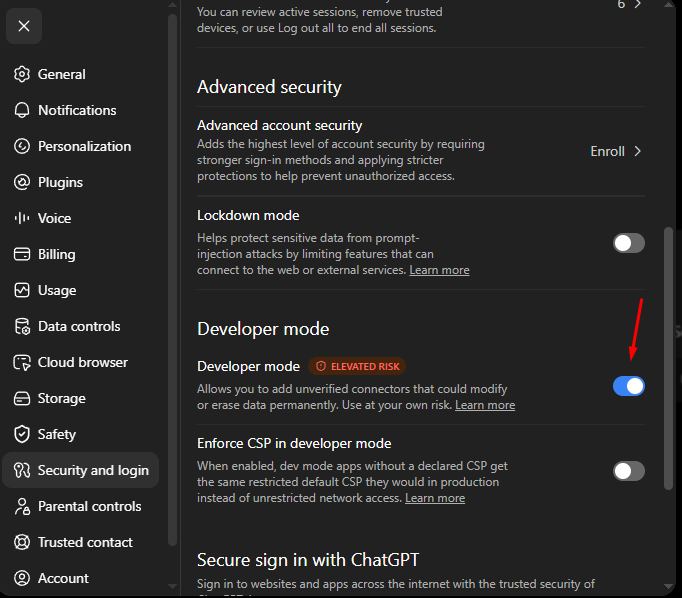
Settings → Security and login → Developer mode. -
Add Dathent
Open chatgpt.com/plugins and press the + button in the top-right corner. In the New Plugin dialog: name it Dathent, keep the connection on Server URL (not Tunnel) and paste the MCP server URL below, and leave authentication on OAuth.
ChatGPT shows a standard warning it displays for every custom MCP server. Tick “I understand and want to continue” and press Create — sign-in uses OAuth, so your Dathent password is never shared with ChatGPT. Dathent will appear under Drafts.
https://api.dathent.ai/mcp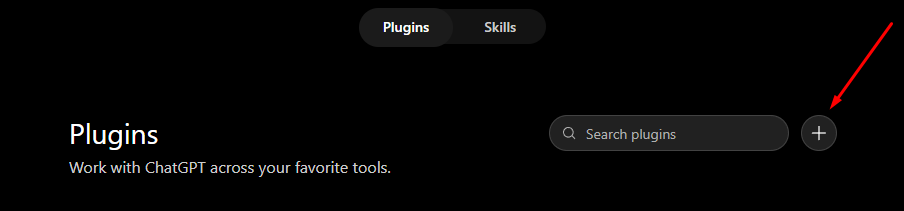
The “+” button on chatgpt.com/plugins. 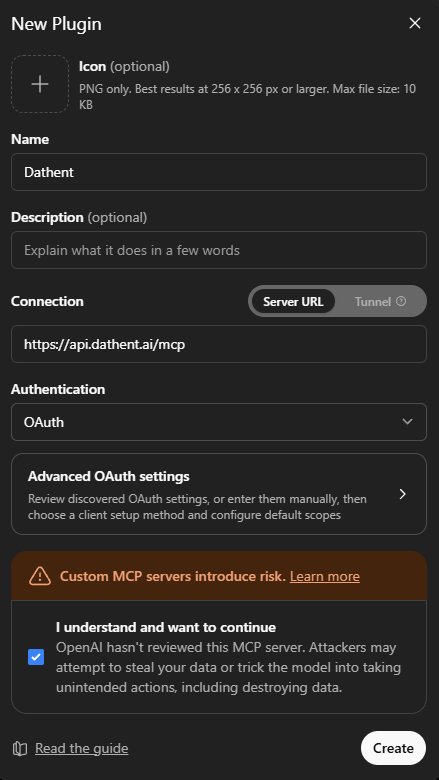
Name it Dathent, keep Server URL, leave OAuth, tick the checkbox, press Create. -
Sign in with Dathent
ChatGPT opens an “Add Dathent to ChatGPT” window. Press Sign in with Dathent and approve access. This is OAuth — ChatGPT never sees your Dathent password, and you can revoke access at any time.
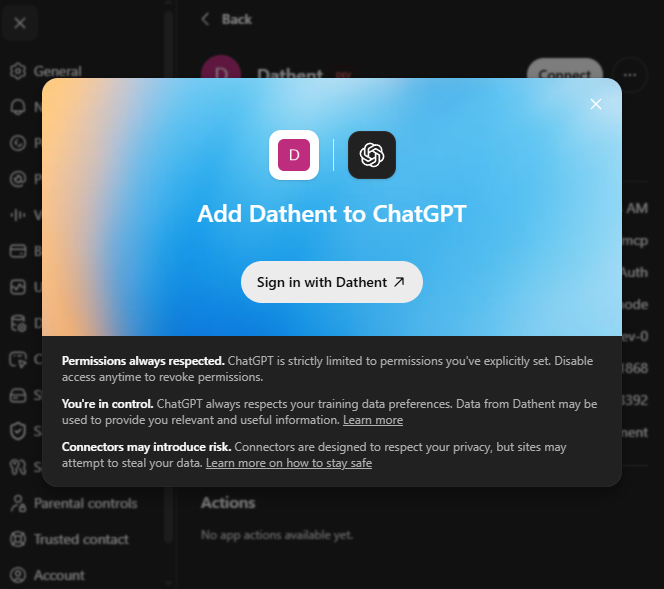
Approve once — this is the OAuth sign-in. -
If Actions is empty, press Refresh
Right after connecting you may see “No app actions available yet.” That is normal. Press Refresh next to Information and the list fills with Dathent’s actions — creating posts, scheduling, performance and the rest.
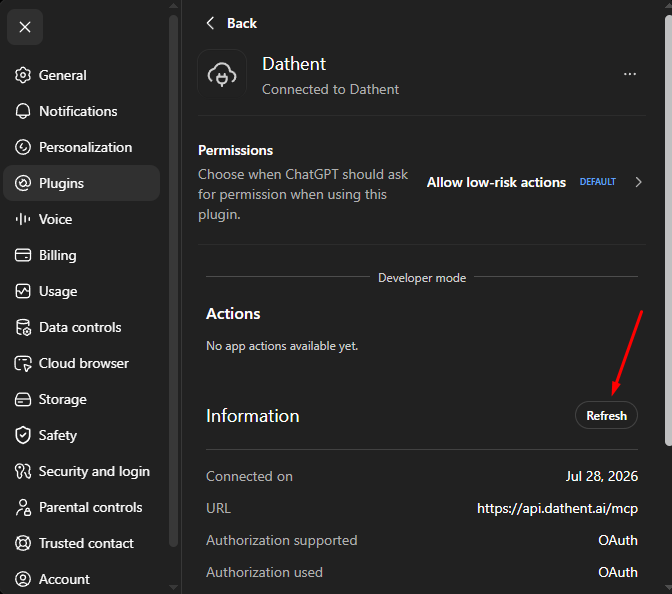
No actions yet? Press Refresh. 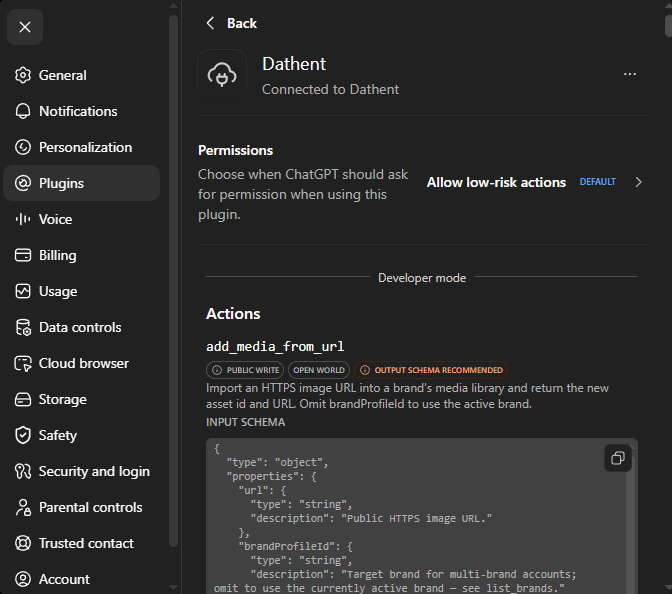
After Refresh the actions appear. -
The step everyone misses
Call Dathent in a chat
Adding the plugin is not enough — you have to bring it into the conversation. In a new chat, type @Dathent in the message box and pick Dathent.ai from the list. (You can also select it from the “+” menu → Developer mode.)
Then just ask, for example: “What can Dathent do?” Write actions such as scheduling or publishing ask for confirmation first. That is expected—and good.
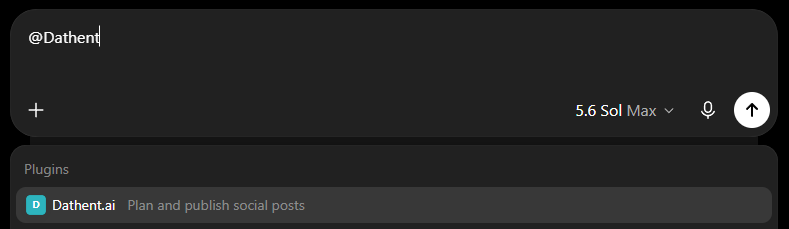
Type @Dathent and pick Dathent.ai.
Connect in Claude
Open the link, approve the connector, then sign in to Dathent.
Manual setup / Claude Code CLI
Or add it manually
Go to claude.ai → Settings → Connectors → Add custom connector, then paste the URL below.
https://api.dathent.ai/mcpConnectors are account-level. Once you add Dathent on the web, it works in Claude mobile apps too.
Using Claude Code?
Run this command in your terminal:
claude mcp add --transport http dathent https://api.dathent.ai/mcp
Other AI agents — custom MCP connector
https://api.dathent.ai/mcpAny MCP-capable assistant can connect to Dathent with this endpoint and OAuth sign-in — for example Grok, or Codex CLI:
codex mcp add dathent --url https://api.dathent.ai/mcpcodex mcp login dathentTroubleshooting
I added it but nothing happens in chat
Adding the plugin does not switch it on by itself. In each new chat, type @Dathent and pick Dathent.ai, or select it from the “+” menu → Developer mode.
“No app actions available yet.”
Open the plugin in Settings → Plugins → Dathent and press Refresh next to Information. ChatGPT then pulls the current list of actions from Dathent.
Tools look stale or widgets fail to load
Press Refresh on the plugin page first. If that does not help, remove the connector and add it again — both ChatGPT and Claude cache the tool list.
It asks me to confirm actions
That is by design. Nothing is ever published without your confirmation.
How do I disconnect?
Revoke access anytime in Dathent → Settings → API & Connectors → Connected apps, and remove the app in ChatGPT or Claude settings.