Use your own social content with Dathent Publishing in Claude
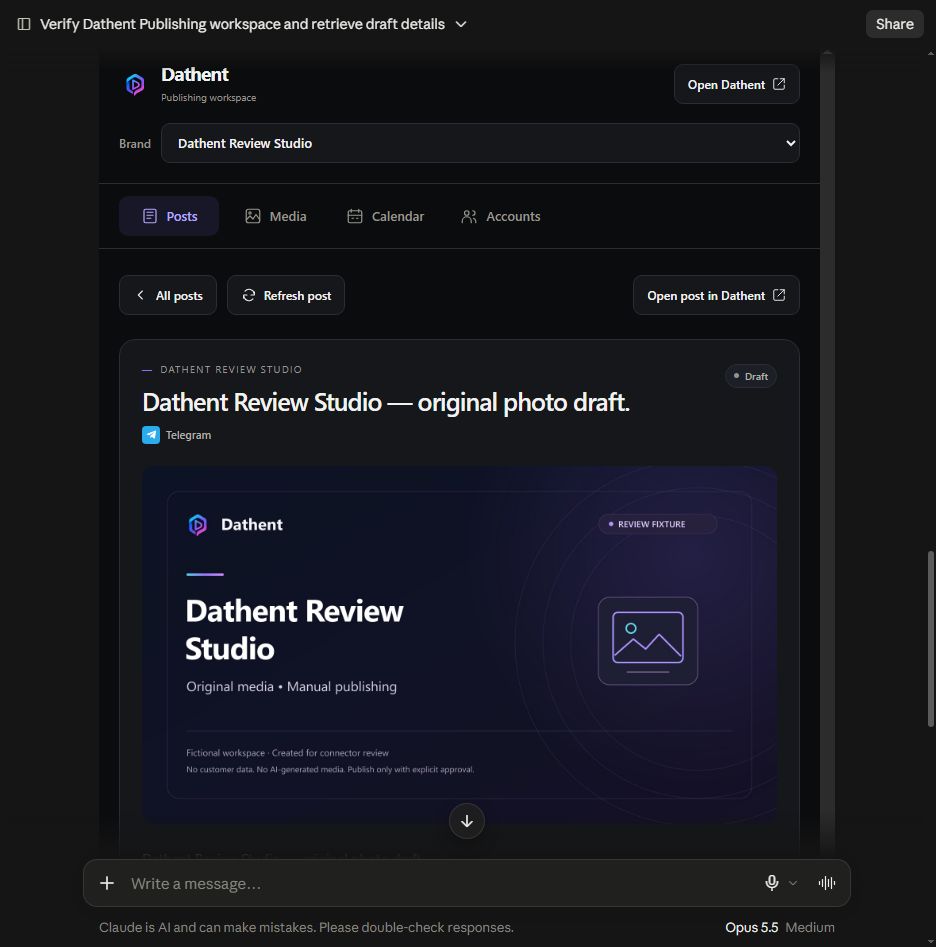
Dathent Publishing brings your saved content into Claude. Open Posts, Media, Calendar and Accounts in one workspace, save captions as drafts, and review a publication before you confirm it. This connector uses your supplied text and original photos or videos saved in Dathent. It does not run Dathent AI generation or autopilot. Your existing Dathent connection in ChatGPT can stay as it is.
Before you connect
Have a Dathent account, a saved brand and the access needed for your intended actions. New production accounts complete Dathent’s current signup and billing setup before connecting. Original video uploads require paid-plan access; a trial does not include them. Scheduling and publishing also require a supported, connected social account that is ready for the selected media.
Connect by URL before directory publication
You can use the released service as a custom connector before it appears in Claude’s directory. On a personal Claude account, open Customize → Connectors → Add custom connector. On Team, an Owner first adds it from Organization settings → Connectors → Add → Custom; choose Web if asked. Members then connect from Customize → Connectors.
Use Dathent Publishing as the name and this server URL: https://api.dathent.ai/mcp/claude
If authentication options appear, choose Sign in now and Register automatically. Leave manual OAuth client credentials and request headers empty. Follow the Dathent sign-in and consent screens, then return to Claude and confirm that the connector is connected. Claude’s custom-connector instructions
For directory installation, use Dathent Publishing’s published listing once it is available. A custom connection is not a directory listing; do not select a similarly named service or use the staging URL.
Choose what Claude can access
The read permissions cover your brand profile, saved content and calendar. Write content adds manual draft creation and eligible caption editing. Publish content adds scheduling, moving, cancelling and publishing posts. Choose the access you want to grant. Signing in does not create or publish a post.
Turn on Dathent Publishing for the conversation and ask: “Open Dathent Publishing and show my saved posts.” Select the intended brand before making changes.
Add a photo or video
Open Media and choose Add media in Dathent. Upload your original file to the selected brand in Dathent, then return to Claude and refresh Media. A file attached to your Claude conversation is not automatically uploaded to Dathent or turned into a post.
Ask Claude to save your final caption with a chosen saved photo or video. Explicitly request a text-only draft if no media is needed and the destination supports that format.
Edit and publish with confirmation
In Posts, open an eligible draft and choose Edit caption. Review the proposed change and confirm the save. Caption editing is available for unpublished, unscheduled, non-carousel drafts with no scheduling or publication history. A previously cancelled schedule still counts as history; create a separate new draft when needed.
To schedule or publish, review the exact post, destination and, for scheduling, date, time and timezone. Confirm only when those details are right. Connected account status does not guarantee that a provider accepts every format.
Queued or unknown does not mean published. Ask Claude to check the existing post and its result before trying again. Do not submit another publication while the first result is uncertain. Cancelling a schedule keeps your content, and Calendar may retain its history marked Cancelled.
Try these three workflows
“Open Dathent Publishing for my brand and show my saved posts and original media.”
“Save this caption with the photo I selected as a draft. Do not schedule or publish it.”
“Show the details for scheduling this saved video to my connected account tomorrow at 10:00 in my brand’s timezone. Wait for my confirmation.”
Manage access and get help
You can revoke the Claude connection in Dathent → Settings → API & Connectors → Connected apps and disconnect it in Claude. Disconnecting does not delete content or cancel existing schedules. Cancel any unwanted schedules separately.
If sign-in stops in Dathent, finish the required account setup there, then return to the original authorization tab and select Continue connecting. For a failed publication, check the saved error and destination before retrying.
Contact us through the Dathent website. Read our Privacy Policy for information about how Dathent handles your data.