 dathent.
Meet your new Dathent workspace in ChatGPT
Create posts in your brand voice, add photos and videos, plan your calendar and explore results in one workspace beside your ChatGPT conversation. Reconnect an existing Dathent connection to load the latest workspace.
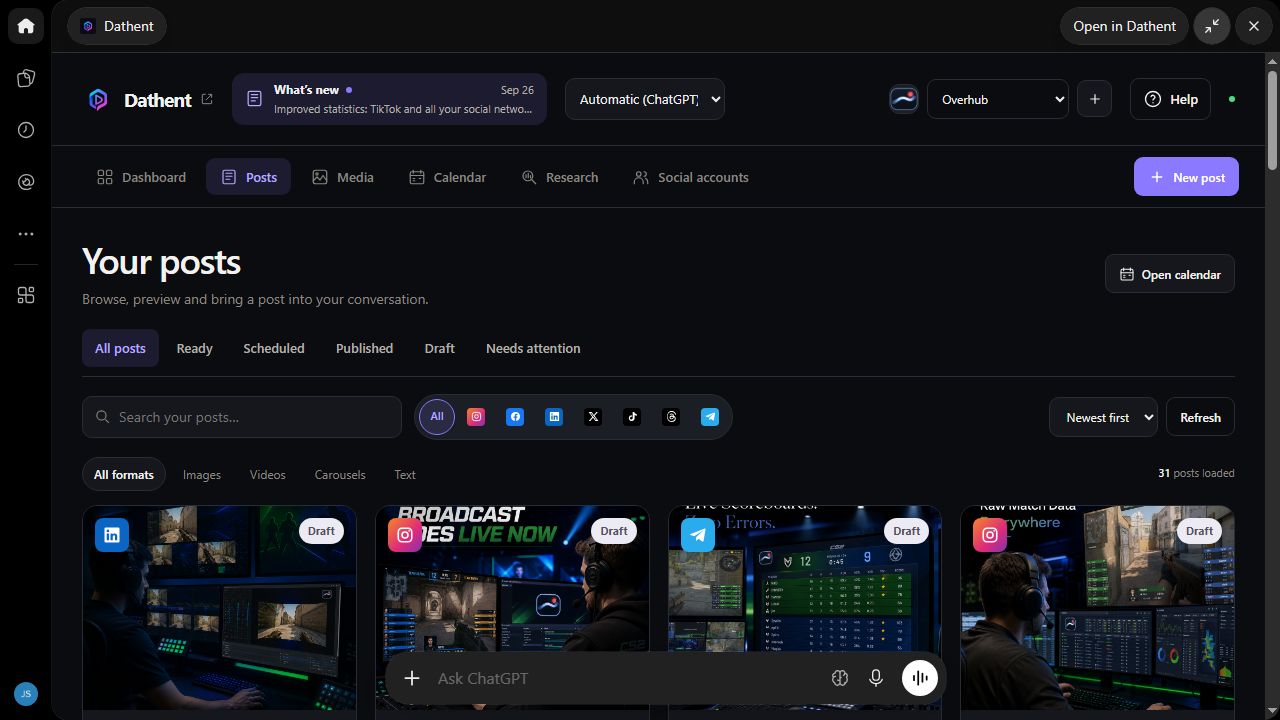
Dathent now opens a complete workspace beside your ChatGPT conversation, bringing your posts, media, calendar, research and analytics together. Keep talking through an idea while you browse your content and decide what happens next.
If you already use Dathent in ChatGPT, reconnect it once to load the latest workspace. If the full workspace already appears beside your conversation, you are ready to go and do not need to reconnect again. Your existing widgets still work, and using the same Dathent account keeps your saved work.
From the first idea to a ready post
Ask Dathent to create a post using your saved brand voice, audience and business context. Start with a caption and one generated image, or shape an idea into a carousel. Preview the result, refine the wording and keep it as a draft until you are ready.
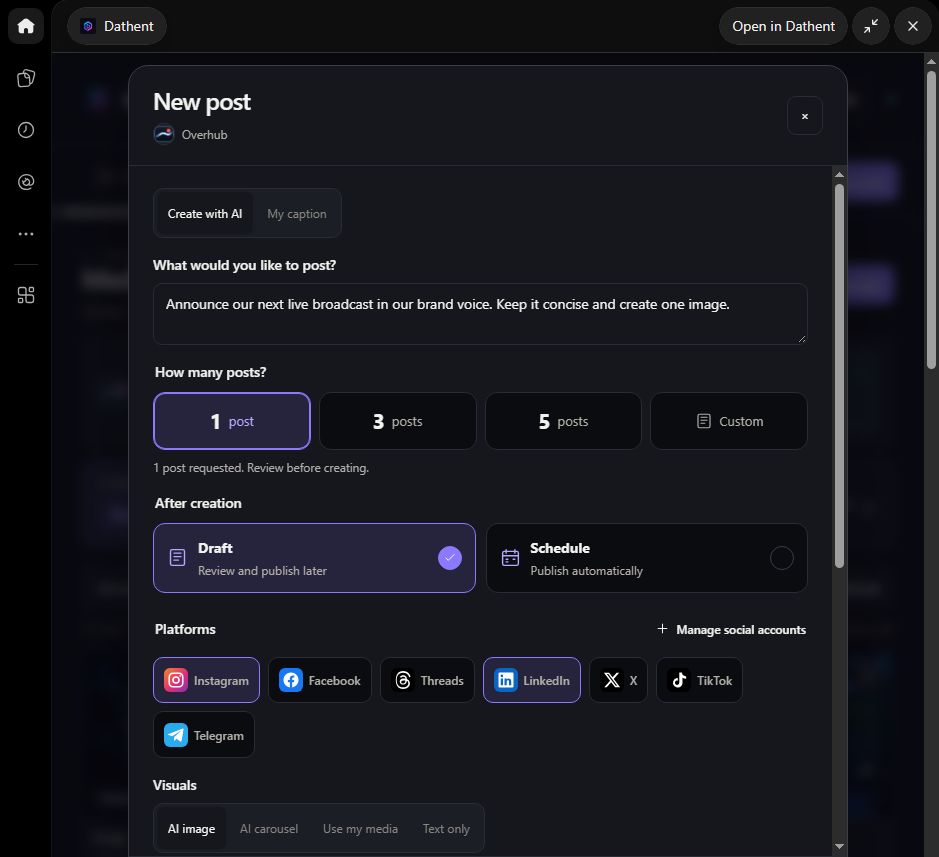
You can also bring your own photography and video into the conversation. Open Media → Add media in the workspace to upload a photo or video from your device, then choose it for a post. Your media library makes those assets easy to find and reuse.
Plan your week and see what works
Browse drafts, scheduled posts and published content in Posts, or switch to Calendar to see your publishing schedule. When a post is ready, schedule it for later or publish now on a supported connected account. Review the content, destination and timing before confirming the action.
Open your saved Research report for audience insights and content ideas, then explore Analytics for views, interactions and top posts. You can discuss the results with ChatGPT while the numbers stay in view. Available metrics depend on the social network and its permissions.
The workspace interface supports English, Ukrainian, Russian, German, Spanish, Polish, Czech, Lithuanian, Latvian and Swedish. Leave the language selector on Automatic (ChatGPT) to follow the language ChatGPT provides, or choose your preferred interface language at the top.
Already connected to Dathent
- Open Apps or Plugins in ChatGPT and select Dathent. Open Manage or the account menu.
- Reconnect Dathent. If your ChatGPT interface shows separate Disconnect and Connect actions, disconnect Dathent there and connect it again.
- Sign in with the same Dathent account and confirm the connection permissions.
- Start a new conversation with Dathent and ask: Show my posts.
This refreshes your ChatGPT connection. Your brand, saved posts, uploaded media and connected social accounts remain in Dathent. You do not need to reconnect your social networks. New to Dathent in ChatGPT? Connect normally to get started.
A few things to try
- Show my posts.
- Create a post in my brand voice with one image.
- Help me plan next week’s posts.
- Show my statistics for the last 30 days.
- Let me review this post, then publish it now to my connected Instagram account.